Представяне на резултати от изчисления: Разлика между версии
Направо към навигацията
Направо към търсенето
| Ред 26: | Ред 26: | ||
* изготвяне на графична част от резултатите от изчисленията за отпечатване. | * изготвяне на графична част от резултатите от изчисленията за отпечатване. | ||
== | ==МЕСТОПОЛОЖЕНИЕ В ПРОГРАМА== | ||
=== | ===Преглеждане и обработка на диагностични съобщения=== | ||
* | * Преглеждане и обработка на диагностични съобщения може да бъде стартирано от прозореца ''<IS_TS id=ErrorModuleTitle/>''.<br/>[[File:Diagnostics-location-3.png|900 px|left|thumb|1. ''<IS_TS id=ErrorModuleTitle/>'']]<br clear="all"/> | ||
=== | ===Преглеждане на резултати от изчисления в таблици=== | ||
* | * Преглеждането на резултати от изчисления в таблици може да бъде стартирано от прозореца ''<IS_TS id=ResultModuleTitle/>''.<br/>[[File:Results-location-2.png|900 px|left|thumb|2. ''<IS_TS id=ResultModuleTitle/>'']]<br clear="all"/> | ||
=== | ===Отпечатване на табличните и графичните части на проекта=== | ||
* | * Отпечатването на табличните и графичните части на проекта може да бъде стартирано от прозореца ''<IS_TS id=Printouts/>''.<br/>[[File:Printuots-location-2.png|900 px|left|thumb|3. ''<IS_TS id=Printouts/>'']]<br clear="all"/> | ||
==Examples of use== | ==Examples of use== | ||
Версия от 03:01, 1 март 2018
| Продукт | InstalSystem 5 |
| Вид статия | FUNCTION AND TOOL |
| Актуално съдържание за версия | BETA REV. 0.0.B37 |
Описание
Статията описва представянето на резултатите от изчисляването на проекта в таблична и графична форма по отношение на:
- разглеждане и обработка на диагностични съобщения,
- преглеждане на резултатите от изчисленията като съвети,
- преглеждане на резултатите от изчисленията в таблици,
- изготвяне на таблична част от резултатите от изчисленията за отпечатване,
- изготвяне на графична част от резултатите от изчисленията за отпечатване.
МЕСТОПОЛОЖЕНИЕ В ПРОГРАМА
Преглеждане и обработка на диагностични съобщения
- Преглеждане и обработка на диагностични съобщения може да бъде стартирано от прозореца Диагностики.

1. Диагностики

Преглеждане на резултати от изчисления в таблици
- Преглеждането на резултати от изчисления в таблици може да бъде стартирано от прозореца Резултати.

2. Резултати

Отпечатване на табличните и графичните части на проекта
- Отпечатването на табличните и графичните части на проекта може да бъде стартирано от прозореца Разпечатки.

3. Разпечатки

Examples of use
Viewing and handling diagnostic messages
- Message levels:
- Грешки
 - messages of the highest importance. All errors that occur during project development must be eliminated, otherwise the results may not be complete. There are two types of errors: critical errors, which halt calculations, and errors that do not interrupt calculations, their occurrence, however, may lead to unreliable results.
 - Предупреждения
 - messages of lesser importance than errors. Warnings do not stop calculations or display of results. Warnings are usually associated with data or results that are presumably incorrect and should always be checked.
 - Съвети
 - messages that only remind or draw attention to some data or results. Like warnings, hints do not block further calculations or display of results.
- Грешки
- Diagnostic window tabs.
These group messages from a selected range of calculations and provide information on the levels of messages that have occurred during calculations of the selected range.
4. Diagnostic window tabs - Message filtering.
Enables turning off complete levels of messages. Very useful for systematizing the handling of diagnostic messages.
- Message grouping for selected components.
This function enables gathering all diagnostic messages that apply to a selected component in the project and eliminating them at once in a single data editing operation.
- Selective marking of components to which a message applies.
Marking of individual components may be effected by left double clicking the message or by selecting from a list of components to which a collective message applies.
- Group marking of components to which a message applies.
Marking of multiple components may be effected by left double clicking the message or by selecting the Маркирай всички елементи, където има наличие на грешка function in the menu.
- Extended information on diagnostic messages.
- Diagnostic messages that require wider explanation in order to eliminate them may refer to the extended HelpSystem. It can be accessed by clicking the
 button at the end of the message line.
- Selected diagnostic messages in the Поле column indicate to which specific fields in the Таблица с данни or in dedicated editors the diagnosed values apply.

5. Extended information on diagnostic messages
- Diagnostic messages that require wider explanation in order to eliminate them may refer to the extended HelpSystem. It can be accessed by clicking the


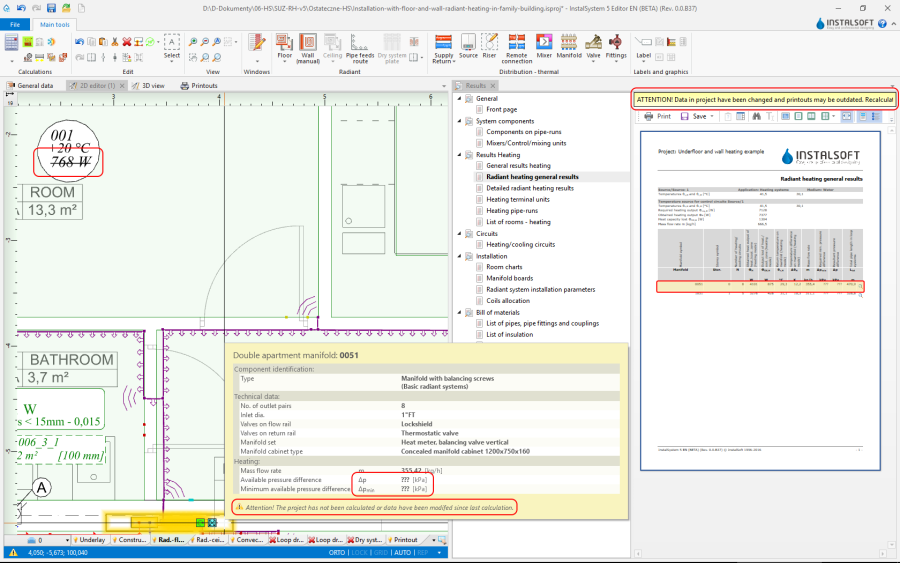
Presentation of calculation results of a project that has a Not Calculated status
- The invalid or not calculated status of a project is indicated by a warning symbol displayed on the status bar.

6. Project not calculated - status bar - Invalid or not calculated results are indicated by:
- crossed out values in labels,
- question marks in hints,
- appropriate messages on invalid calculation results:
- Внимание! Проектът не е бил изчислен или данни са били променени след последното изчисление.
- ВНИМАНИЕ! Данни в проекта са били променени и разпечатките може да не са актуални. Преизчислете!
7. Project not calculated


Viewing calculation results as hints
- The program enables convenient viewing of component data and calculation results in the form of hints. To display a hint with component data and results, position the mouse cursor over the component and wait for a moment. For some components, e.g. a radiator with integrated valve or a manifold with a manifold set, hints of differing content can be displayed depending on the place the cursor is positioned. When the cursor is positioned over a junction (point of connection of pipe-runs), the hint contains information on the manner of constructing the junction (selected and sized pipe fittings and accessories) using components available in catalogs.
Viewing calculation results in tables
- Tabular calculation results are presented in a tree structure divided into sections. The number and contents of a section corresponds to the scope(s) of the project and the result sought should be looked for in the appropriate section. Result viewing is facilitated by a number of display control functions: view single pages, view multiple pages, navigate using miniatures. Tables of results can have their headings hidden, and bills of materials can be displayed with additional graphical and descriptive information on the products.
За повече информация, моля вижте: Using catalogs and catalogs data in the project
Preparing tabular part of calculation results for printing
- It is possible to print:
- a setup (composition) (predefined or user-defined) - from within the Разпечатки module.
- a single table - from within the Резултати module.
The Print operation can be launched for the individual sections in the tree in the calculation results viewing window.
- a setup (composition) (predefined or user-defined) - from within the Разпечатки module.
Preparing graphic part of calculation results for printing
- Вмъкни рамка на чертеж.
За повече информация, моля вижте: Export / print results and drawings - Етикет.
- Таблица на колектор.
- RHC кръг.
За повече информация, моля вижте: Appending drawings with radiant system loops - Конструкция пресича разрез на чертеж.
- Рамка на чертеж.
- Антетка на чертежа.