Интерактивни изчисления на лъчисти системи
| Продукт | InstalSystem 5 |
| Вид статия | ФУНКЦИОНАЛНОСТИ |
| Актуално съдържание за версия | 2022-03-01 |
Description
Интерактивни изчисления на лъчисти системи enables fast manual adjustment of selected parameters of a radiant system in given application (Отопление/Охлаждане). In the Интерактивни изчисления на лъчисти системи window the following can be adjusted:
- the value of Тръбно монтажно отстояние calculated by the program,
- the value of Темп. пад на захранване-връщане
- the value of Брой на О/Охл. повърхности.
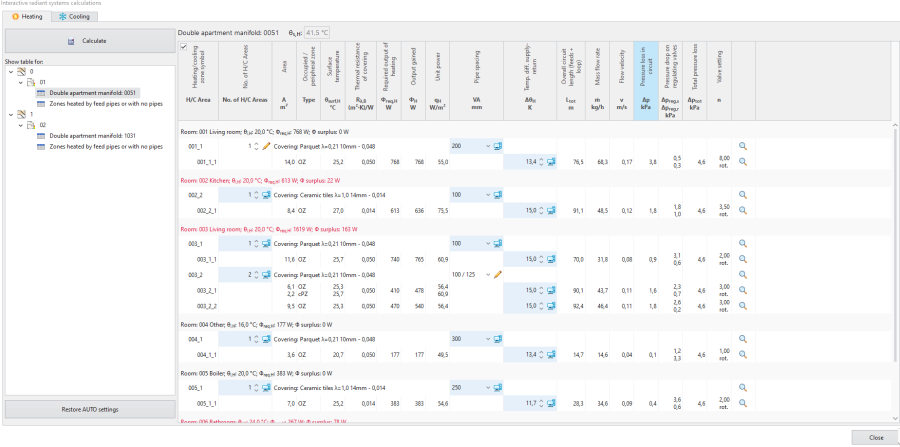
1. Интерактивни изчисления на лъчисти системи - tab Отопление 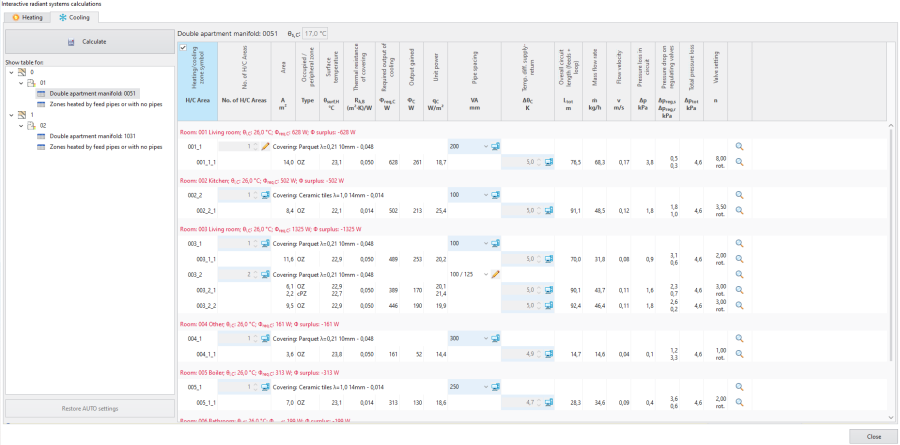
2. Интерактивни изчисления на лъчисти системи - tab Охлаждане


After modifying the value of Тръбно монтажно отстояние calculated by the program, only the minimum required set of calculations is made:
- pressure drops in the radiant heating/cooling loops are balanced only in relation to each other across the manifold.
Pressure drops across the manifold balancing valves are calculated during interactive calculations under the assumption that the pressure at the manifold inlet is equal to the required minimum available pressure for this manifold. After final calculations pressure drops are recalculated with flow calculations made for the entire system, as a result the pressure at the manifold often could be higher than the required minimum available pressure.
In the case of the Темп. пад на захранване-връщане value it is not necessary to click the Изчисли button. After closing Интерактивни изчисления на лъчисти системи:
- calculations must be run, as the project has an uncalculated status, which is indicated, for instance, in the status bar:
Внимание! Проектът не е бил изчислен или данни са били променени след последното изчисление..
Location in the program
- The Интерактивни изчисления на лъчисти системи icon is available in the Главни ленти с инструменти bar in section Изчисления.
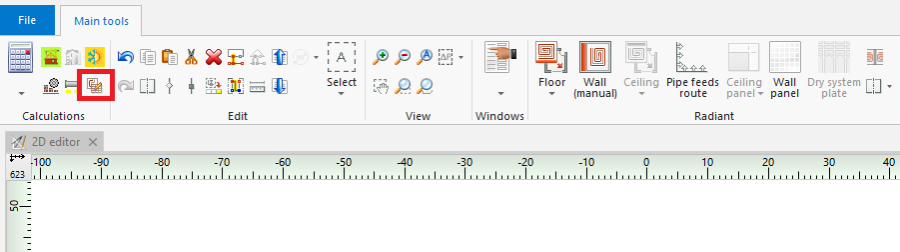
3. Интерактивни изчисления на лъчисти системи - Keyboard shortcut: Ctrl + Shift + F10.

Examples of use
Which scopes are available for Интерактивни изчисления на лъчисти системи and which windows are editable depends on the selected use of source.
- Отопление use - in the Интерактивни изчисления на лъчисти системи window it is possible to modify parameters in the Отопление tab, the Охлаждане tab is empty.
- Ефективност на отопление и охлаждане use - in the Интерактивни изчисления на лъчисти системи window it is possible to modify parameters in the tab Отопление, the Охлаждане tab displays all values, but these cannot be modified.
- Охлаждане use - in the Интерактивни изчисления на лъчисти системи window it is possible to modify parameters in the Охлаждане tab, the Отопление tab is empty.
Other possibilities in the Интерактивни изчисления на лъчисти системи window
- Filtering Отоплителна/Охладителна зона connected to given manifold.
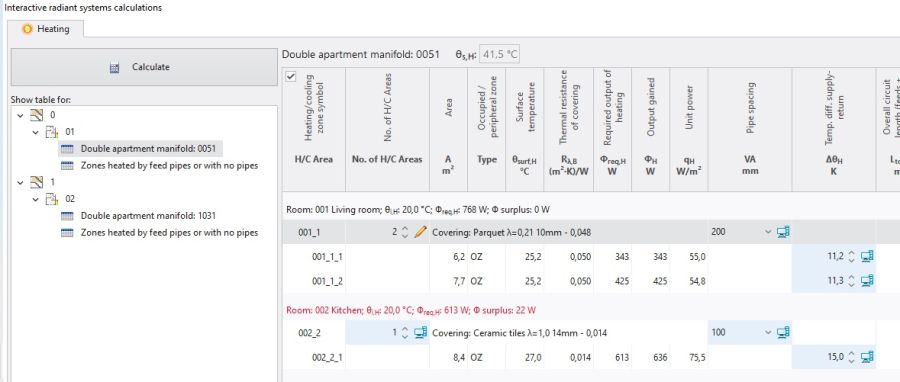
5. Filtering Отоплителна/Охладителна зона connected to given manifold. - Restoration of automatic calculation settings - Възстанови АВТО настройки.
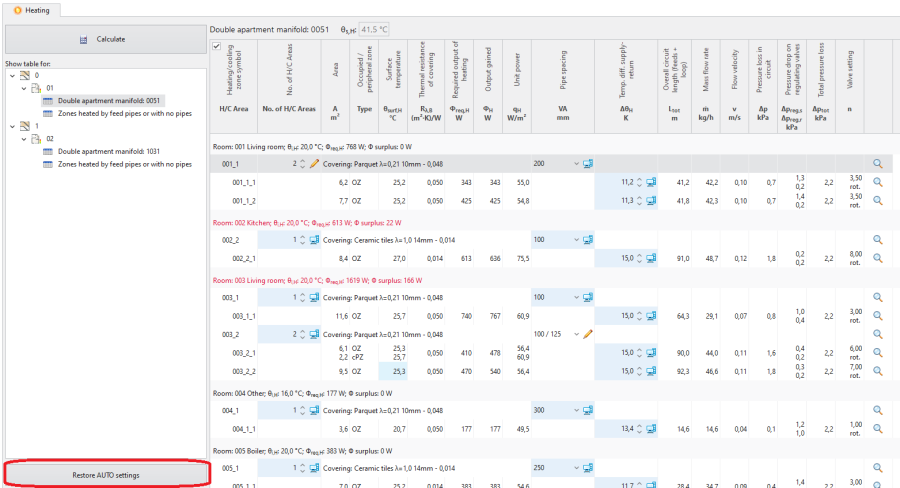
6. Възстанови АВТО настройки


Adjustment of the number of Heating/Cooling Areas
- When the number of H/C Areas is changed manually, the default values of Темп. пад на захранване-връщане (computer status) are restored for all H/C Areas belonging to given H/C Areas Zone.
Adjustment value of Тръбно монтажно отстояние
- As a result of manual adjustment of Тръбно монтажно отстояние the program can change the value of Отоплително-охлаждаща повърхност, but the automatic mode of Отоплителна/Охладителна зона division is not disabled.
Change in the value of Тръбно монтажно отстояние in a single Отоплително-охлаждаща повърхност changes that parameter in all О/Охл. повърхност elements present within the common Отоплителна/Охладителна зона.
Display of the balancing valve setting and of the covering
- The selected covering is displayed in the Интерактивни изчисления на лъчисти системи window.
- The field Настройка на вентил is displayed with a value in the Интерактивни изчисления на лъчисти системи window.
Adjustment of Темп. пад на захранване-връщане
- Modification of this value may, among other things, have an effect on the elimination of the diagnostics message:
- скоростта на водата в тръба е недостатъчна за само-вентилиране.
If the Темп. пад на захранване-връщане value is modified, it is not necessary to click the Изчисли button.
Отчети vмин. в сметка for pipes taken from a catalogue that contains Подови системи
In thermal calculations account is taken of the value of minimum flow velocity in a pipe (v_min) from the Floor systems, Wall systems, Ceiling systems tabs. In the AUTO mode the starting value for the selected pipe type is taken from the catalogue that contains Floor systems. The effect of this on the results is shown in the Интерактивни изчисления на лъчисти системи tab.
Additional information
The consequence of adjusting parameters in Интерактивни изчисления на лъчисти системи is the rejection of the option of optimum supply temperature determination in a radiant system according to the criterion selected in Общи данни:
- Топлотдаване и нап. загуби,
- мин. капиталовложения.
This rejection is indicated by the program with diagnostics messages at the hint level:
- има по-добро монтажно отстояние от определено, отчитайки топлотодаването,
- има по-добро монтажно отстояние от определеното, отчитайки разходите,
- има по-добро монтажно отстояние от определено, отчитайки топлоотдаването и хидравликата.
The list of diagnostics messages in the Интерактивни изчисления на лъчисти системи window may differ from that in the Диагностики window. Any adjustments in the design should be based on the list of messages created after calculations are made for the appropriate scope of the design, e.g. Отоплителни и охладителни системи, that is in the Диагностики window.
Rules of highlighting the fields which are editable in the calculations window:
- Changing a value in a field causes the cell to be highlighted with another colour and presentation of that value.

6. Presentation of a field with a manually entered value immediately after editing - No colour highlighting after completed calculation.
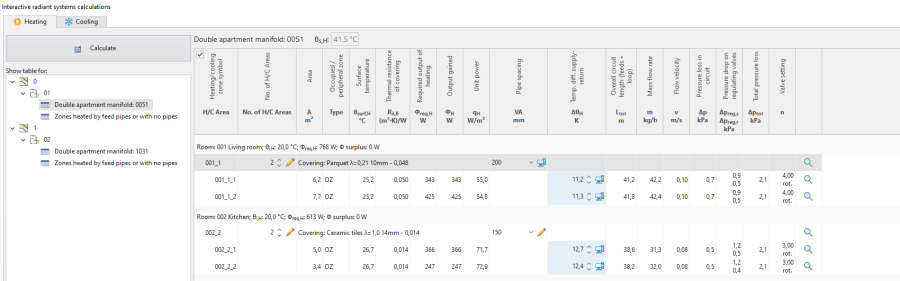
7. Presentation of a field with manually entered value after calculation

