Подготовка конструкция на сграда - Етажно разпределение
| Продукт | InstalSystem 5 |
| Вид статия | ФУНКЦИОНАЛНОСТИ |
| Актуално съдържание за версия | 2022-02-16 |
Description
Rooms layout consists of manually entered Помещение components which together with the storey data make up the building structure. Building structure design based on the rooms layout should be selected when:
- the room thermal load is determined on an indicative basis
- the user specifies the thermal load.
A design made using a building structure based on polyhedral cubicles (without the use of structural components such as walls, slabs or roofs) is a good way to significantly reduce working time when there is no need to make thermal load calculations based on standards.
Webinars
We encourage you to see the video from our webinars presenting the possibilities of using the function described in this article:
Местоположение в програмата
Управление на етажи
- Управление на етажи can be found in the Общи данни window, section Сграда и околности.
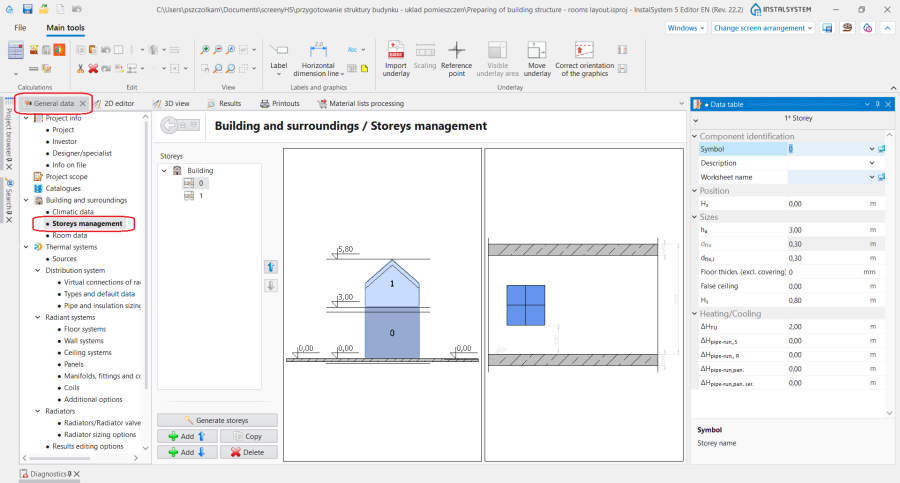
1. Управление на етажи.

Данни на помещения
- Данни на помещения can be found in the Общи данни window, section Сграда и околности.
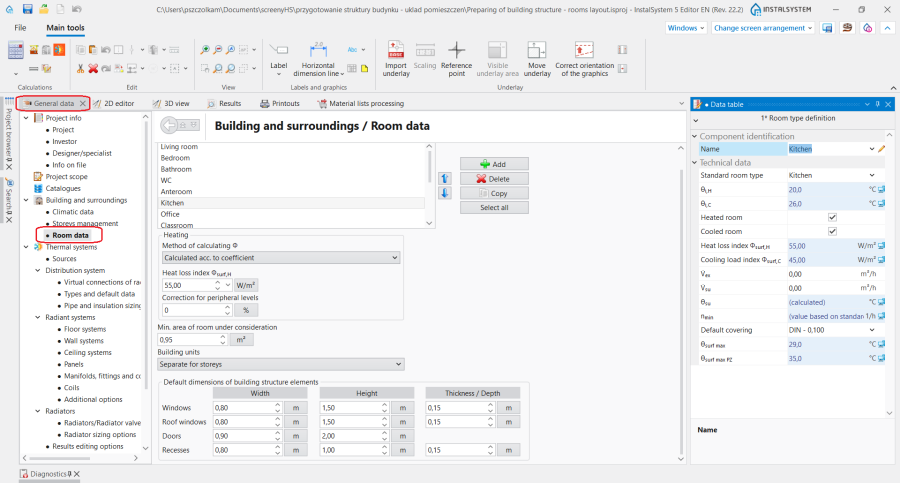
2. Данни на помещения.

Помещение
- The icon used for placing a Помещение is on the Главни ленти с инструменти bar, section Конструкция, when the Конструкция scope is enabled.
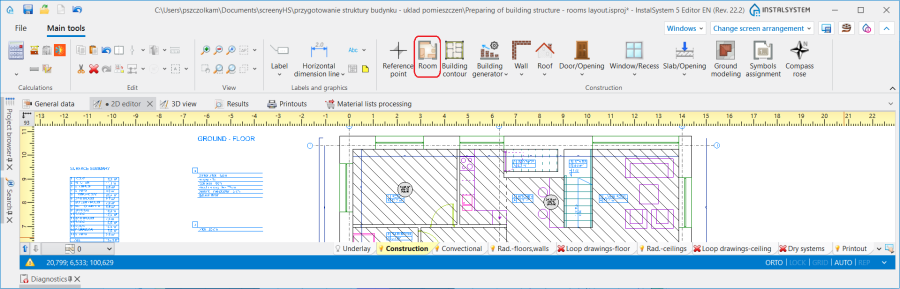
3. Помещение component.

Examples of use
Creating a storey
In the Управление на етажи section information on the building location can be entered:
- Средно понижение на сградата
- Кота партер
as well as the major Етаж data:
- Положение
- Етажна кота
- Етажна височина
- Дебелина на таван
- Дебелина на под
За повече информация, моля вижте: Preparation of building structure - Storeys.
Основа
Основа is a two-dimensional (flat) graphical object extracted from a raster or vector file. Основа in itself does not provide any components of the building structure, but it allows for their manual creation in agreement with reality.
За повече информация, моля вижте: Import underlay files.
Inserting a room
There are two methods of inserting a room into the design:
- by outlining the room edges
- by drawing a room diagonal
Tips:
- When inserting multiple rooms, enabling the ПОВТ function (F5) will facilitate work.
- To insert a Помещение by drawing a diagonal it is necessary to disable the ОРТО function.
Creating multi-storey rooms
За повече информация, моля вижте: Preparation of building structure - Multi storey rooms.
Specifying room data
Данни на помещения
Section Данни на помещения in the Общи данни window contains the most important Параметри на помещение, which are passed onto the components placed in the design. The following parameters are defined here:
- Дефиниране на вида стая - select from a list of standard rooms or specify user room type.
- Метод на изчисление Φ for the Отопление and Охлаждане scopes (section display depends on the scopes enabled in the design).
- Values of Топлинна загуба Φsurf,О / Топлинни печалби Φsurf,Охл. when Метод на изчисление Φ method is selected: Изчислен съгл. коефицент.
- For every type of room: Вътрешна температура в режим на отопление / Вътрешна температура в режим на охлаждане and many other parameters that can be changed by the user.

Editing room data in data table
All data in the table of Помещение in the АВТО mode (fields with a computer icon) are transferred from Общи данни. The user can change each of these values after substituting the computer icon with a pencil icon.
Subsequent sections of the data table have the following parameters arranged:
- section Идентификация на елемент:
- Символ - Номер на помещение in accordance with Шаблон на символ на колектор, which is defined in the Общи данни window, section Настройка на външния вид и описания на елемента
- Вид на помещение - selection of this room type affects the parameters transferred to Отопление, Охлаждане sections
- Сградна единица - in this field it is possible to change the unit to which the Помещение is assigned
- section Положение - here the room can be moved to another storey or it can be defined as a multi-storey room. За повече информация, моля вижте: Preparation of building structure - Multi storey rooms.
- От етаж
- До етаж
- section Размери:
- Af - Площ на помещ. м/у преградни повърхности|Площ помещ. преграда
- Дебелина на под - in the АВТО mode the value is taken from the same name field of the Етаж component
- Дебелина на окачен таван - in the АВТО mode the value is taken from the same name field of the Етаж component
The data table also contains the following sections: Отопление, Охлаждане, Стил на 2D / 3D изглед, Етикет.

Graphical presentation of the rooms layout
After editing is completed the appearance of the rooms layout is as shown in the video:
За повече информация, моля вижте: View navigation in the graphical editor.
Numbering the rooms
За повече информация, моля вижте: Preparation of building structure - Numbering the rooms.
Viewing the created building structure
The created building structure can be viewed both in the 2D редактор window, as well as in the 3D изглед window. Проектен браузър and Търси functions are also useful in the navigation through the building structure, both of which are presented in the video below.
Component style configuration
Style of the Помещение and of its label have both their places within the styles tree.
За повече информация, моля вижте: Component appearance configuration.