Подготовка конструкция на сграда - Завършване на сградна конструкция
| Продукт | InstalSystem 5 |
| Вид статия | ФУНКЦИОНАЛНОСТИ |
| Актуално съдържание за версия | 2022-02-25 |
Description
This article describes the setting up of a complete structure of a building comprising the definition of storeys and graphic objects of the type: Стена, Плоча, Прозорец, Врата, Покрив etc., placed on those storeys and making up the building structure. Based on these objects, the existence of rooms in the building design is automatically identified. Alternatively, such structure may be set up based on a graphic Основа taken from an external file uploaded for each storey. A complete building structure is used in designs that include:
- Design heat load calculations made with the use of standard packages
- Various Отоплителни системи, Охладителни системи, Водоснабдителни инсталации and Канализационни инсталации that require the presence of walls, ceiling slabs and roofs.
Webinars
We encourage you to see the video from our webinars presenting the possibilities of using the function described in this article:
Местоположение в програмата
Управление на етажи
- Управление на етажи is available in the Общи данни window in the Сграда и околности section.
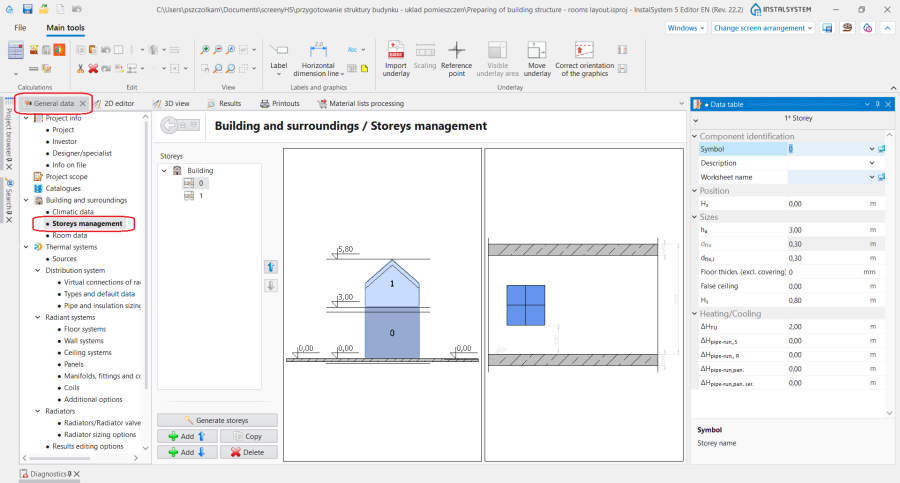
1. Управление на етажи.

Import underlay
- Component and function icons pertaining to underlay import are available in the 2D Editor window on the Главни ленти с инструменти bar in the Основа section when the Основа editing scope is activated.
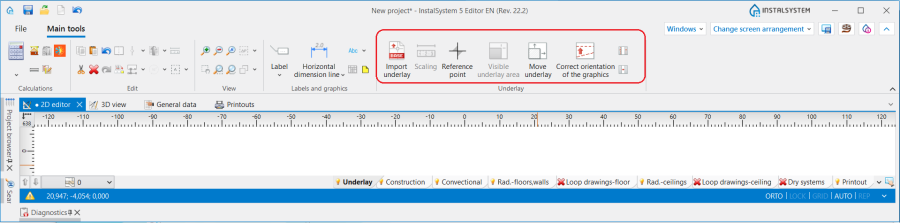
2. Внеси подложка

Building structure components
- Component and function icons pertaining to the building structure are available in the 2D Editor window on the Главни ленти с инструменти bar in the Конструкция section when the Конструкция editing scope is activated.
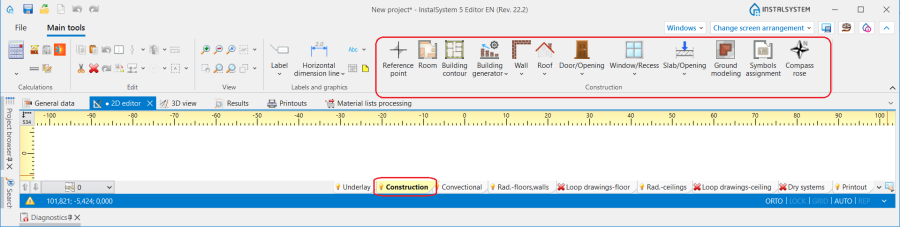
3. Building structure components

Изчисление на сградна конструкция
- Изчисление на сградна конструкция is available on the Главни ленти с инструменти bar in the Изчисления section.
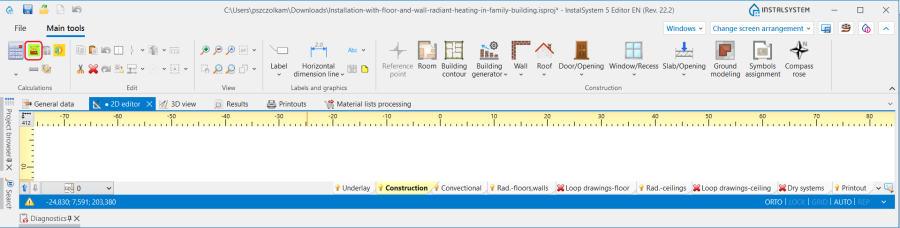
4. Изчисление на сградна конструкция

Examples of use
Creating a storey
За повече информация, моля вижте: Preparation of building structure - Creating a storey.
Loading an underlay
За повече информация, моля вижте: Preparation of building structure - Loading an underlay.
Manual editing of rooms and automatic identification of walls, slabs and roofs
Insertion of manual rooms
Помещение Ръчно is represented by a polygon with active vertices. This is each Помещение drawn before building structure is generated and Изчисление на сградна конструкция is carried out. Shape of a Помещение Ръчно can be changed by:
- moving the positions of component vertices using the 2D редактор,
- adding another vertex on any side of the polygon using the Вмъкни разделяща точка function and changing its position.
За повече информация, моля вижте: Preparation of building structure - Rooms layout.
Inserting building contour
Form a contour around the building plan using the Контур на сграда function, which is available on the Главни ленти с инструменти bar in the Конструкция section when the Конструкция editing scope is activated.
Hint:
- when the building contour is identical on an adjacent storey, a single common Контур на сграда can be created which covers all storeys of the same shape,
- when the building contours on successive storeys differ from each other, a separate Контур на сграда must be placed on each storey.
Сграден генератор
- The operation is accessible on the Главни ленти с инструменти bar in the Конструкция section when the Конструкция editing scope is activated.
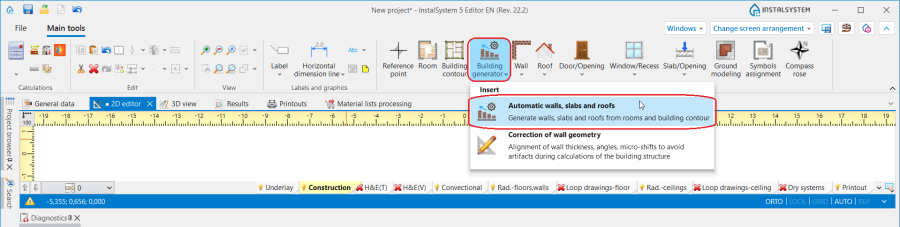
5. Сграден генератор - Създай стени, плочи и покриви от помещения и контур на сграда enables the creation of these partitions in spaces identified by the program between the rooms found in the design and the external contour of the building.
- After completing Създай стени, плочи и покриви от помещения и контур на сграда, Изчисление на сградна конструкция can be carried out. If there are no errors in the structure, all Помещение Ръчно components at this stage will be converted into Помещение Автоматично. The shape of a Помещение Автоматично is defined by restricting components: Стена, Плоча and Покрив.
- The structure thus generated should be complemented with Прозорец, Врата, Отвор в стена, Отвор в плоча components and the actual shape of the Покрив should be defined according to guidelines given below. The Стена components created as a result of the operation, which make up the building structure, may also further be edited in accordance with the information given below.

Помещение - identification within an area enclosed by drawn partitions
A Помещение Автоматично may also be created in areas enclosed by edges (surfaces) of inserted graphic partitions (i.e.: Стена, Плоча, Покрив components). This requires manual drawing od building structure and carrying out Изчисление на сградна конструкция.
After a Помещение Автоматично is selected, it cannot be edited, unlike in the case of a Помещение Ръчно. Each operation, the purpose of which is to modify the surface and shape of Помещение Автоматично (e.g. change of position and shape of structure components that make up the Помещение, partitioning and combining of rooms), requires repeating the Изчисление на сградна конструкция.
To create a structure by drawing its physical components follow the steps below.
Inserting walls
Editing a Стена component
- Стена may be inserted into a design as a series of components with successive single walls joined together by means of special connecting points. After selecting a Стена in the 2D редактор window, dedicated editors become available which enable changing the dimensions and shape of a component, i.e.:
- change the length indicating the direction of the change
- indicate the edge of the wall from which its thickness is to be increased
- change the shape of an inserted component from straight to curved
- create a mirror image of a component, with respect to the positioning of editors.
- Additionally, in the Таблица с данни window, component type can be changed to Окачена фасада or a wall of this type can be inserted directly from the tool bar to represent curtain walls, glazing or facades in the design.
- Each wall can have its Дебелина [м] specified as 0 and such wall can be used to partition rooms without creating a logical partition. За повече информация, моля вижте: Calculation of design heat load of rooms.
Creating a structure with the use of walls
Insert a series of Стена components, specifying beforehand in the Таблица с данни the thickness of the wall and moving the mouse cursor along the internal edges of walls on the underlay. In case of underlays from a DWG file, make use of attracting to a layer indicated on the underlay. After inserting External walls, insert Internal walls in a similar manner.
Inserting slabs
Insert a Плоча. The outline of one storey is usually covered by a single slab.
If a Плоча protrudes beyond the building outline on a storey, and there is no Помещение above it, it can be converted into a Покрив by means of the Преобразуване в покрив function which is accessible from the pop-up menu of the Плоча component. The shape, thickness and elevation of the component is retained, while a flat Покрив is formed as a result of the transformation.
Inserting a roof
Insert a Покрив.
If a Покрив is not flat, create a multi-hipped Покрив.
За повече информация, моля вижте: Preparation of building structure - Creation of roofs with different construction.
Verifying the created building structure
To verify that the drawn structure is correct, carry out Изчисление на сградна конструкция, after which all created Помещение Автоматично components will be identified within the area enclosed by the structural components.
Inserting windows, doors and openings in walls
- Insert: Прозорец, Врата, Отвор в стена, Ниша.
- Отвор в стена connects two adjacent rooms on one storey. To connect rooms, in the Таблица с данни of the Отвор в стена select Комбинирай помещения, and then run the Изчисление на сградна конструкция.
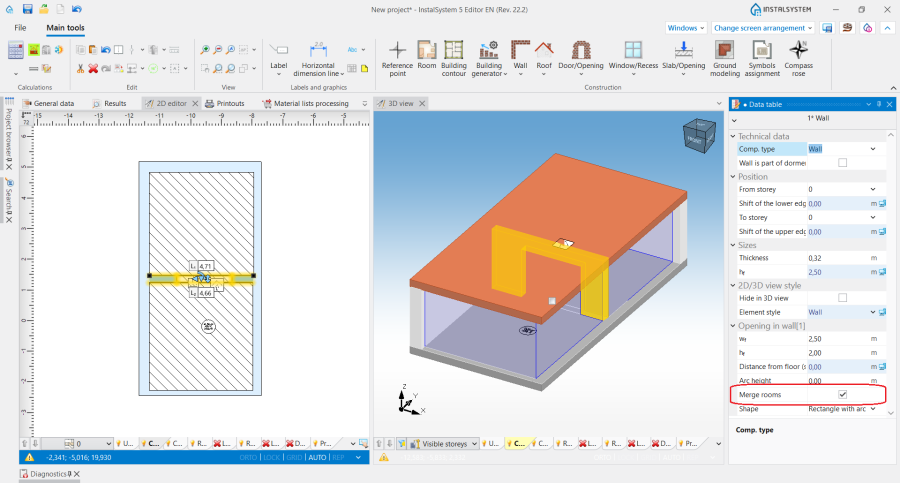
5. Room connected by an opening in the wall - Отвор в плоча connects two rooms that are on adjacent storeys and creates a multi-storey Помещение. To connect rooms insert an Отвор в плоча, and then run the Изчисление на сградна конструкция.
Отвор в плоча can be removed by clicking .
.


За повече информация, моля вижте: Preparation of building structure - Multi-storey rooms.
- If necessary, insert a Покривен прозорец in the drawn Покрив.
Изчисление на сградна конструкция
Изчисление на сградна конструкция initiates a number of operations associated with the creation of a complete building structure. Among them:
- Cutting off walls with the roof plane.
- Conversion of manual rooms into automatic rooms enclosed by structural components created as a result of running Създай стени, плочи и покриви от помещения и контур на сграда.
- Automatic identification of rooms based on horizontal and vertical partitions, connecting rooms located on same storey, creating multi-storey rooms.
- Correction of walls geometry. Additionally, when Изчисление на сградна конструкция results in errors caused by problems with proper interpretation of the created building structure, the Поправка на геометрия на стена function may be used to carry out Подравняване на дебелина на стена, ъгли, микро-замени, за да се избегнат артефакти по време на изчисленията на сградната конструкция. За повече информация, моля вижте: Wall geometry correction.
- Diagnostics with indication of the componets that cause errors in the building structure.
- If Изчислителни раздели (модули) Топлинни изчисления на сграда is enabled, logical partitions displayed in the H&E(T) are automatically identified and Дефиници на преграда are assigned thereto. За повече информация, моля вижте: Calculation of design heat load of rooms.
After every change that modifies the building structure the Топлинни изчисления на сграда must be run.
Additional information
Dividing flat construction components
If there is a need to divide flat components of a structure, Повърхностно разделяне на конструкция и/или монтажни елементи may be used. This function is accessible in the 2D редактор window on the Главни ленти с инструменти bar in the Редакция section when Конструкция is enabled. Division can be effected on flat construction components, i.e. Помещение Ръчно, Покрив, Плоча.

For instance, this function may be used when a Контур на сграда on a storey below protrudes beyond the outline of the current storey, and part of the slab created between these storeys is a roof.
Building units
It is possible to handle automatically created Сградни единици. За повече информация, моля вижте: Editing data of Building units.
Numbering the rooms
За повече информация, моля вижте: Preparation of building structure - Numbering of rooms.
Ground modelling
За повече информация, моля вижте: Ground modeling.
Configuring component style
Components: Помещение (Ръчно and Автоматично), and building structure components: Стена, Плоча, Покрив, Отвор в стена, Контур на сграда have their own place in the style tree. Their appearance, along with the appearance of the labels, can be configured. За повече информация, моля вижте: Component appearance and descriptions configuration.