BIM – внос и управление на IFC модели в ИнсталСистем 5 BIM
| Продукт | InstalSystem 5 |
| Вид статия | ФУНКЦИОНАЛНОСТИ |
| Актуално съдържание за версия | 2022-04-11 |
Описание
The article describes how to import BIM models to InstalSystem 5 package and how to manage these models in the project.
The software enables to import many models to one project file, which is extremely important when the design process is divided into many stages and objects and particular storeys or parts of the building are contained in separate IFC models. InstalSystem 5 enables importing many IFC files from different building sectors and programmes simultaneously and after loading them into the program, the coordinates from the files are appropriately synchronised. However, particular models are not merged with each other, which means that they can be replaced at any stage of the design.
IFC model management in InstalSystem 5 package is supported by a number of tools, i.e:
- Проектен браузър window
- Търси window
- Таблица с данни window
- 2D редактор and 3D изглед.
Full capabilities of the listed tools are presented further on in the article.
Webinars
We encourage you to see the video from our webinars presenting the possibilities of using the function described in this article:
Местоположение в програмата
- The Внеси IFC модел icon is accessible in the 2D редактор window and in the 3D изглед window on the Главни ленти с инструменти bar in the Основа section for the active Основа editing scope.
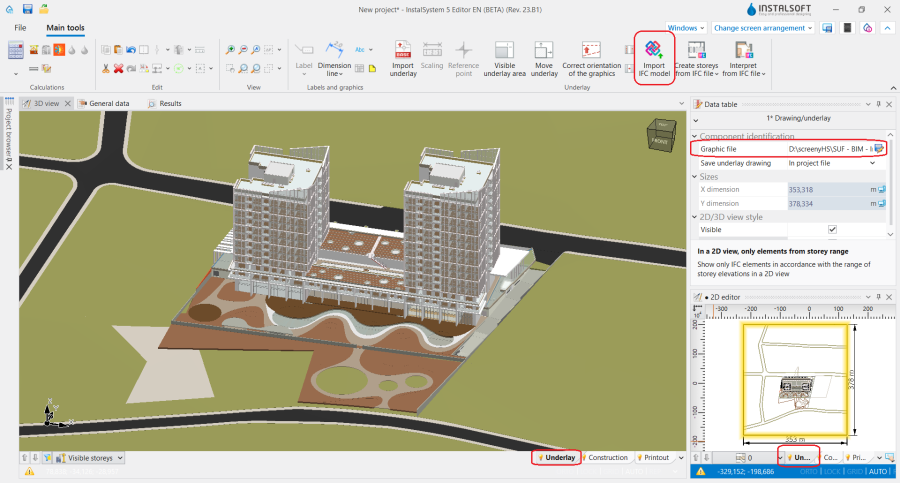
1. Внеси IFC модел.

Example of use
Importing an IFC model into the InstalSystem 5 package
- The video shows how to import a building model from an IFC file into a project.
Handling multiple IFC models in a single project file
- All IFC models loaded into the project are displayed in the Проектен браузър window. All IFC models loaded into the project are displayed in the Project browser window. Irrespective of the number of loaded models the coordinates of the IFC models are synchronised, whereas the files are not merged, which allows for easy replacement of models if a change is made at any stage of the project.
- Подложният чертеж ще бъде записан в проектния файл или винаги ще бъде зареждан от външен файл. In order to save all imported IFC models to one .isproj file, in the Таблица с данни window of the selected IFC model, in the Запиши подложен чертеж field select the В проектен файл option. The IFC models saved in the native InstalSystem 5 file are available at any stage of work with the project. When the Във външен файл option is selected, the imported models will be saved to an external file.
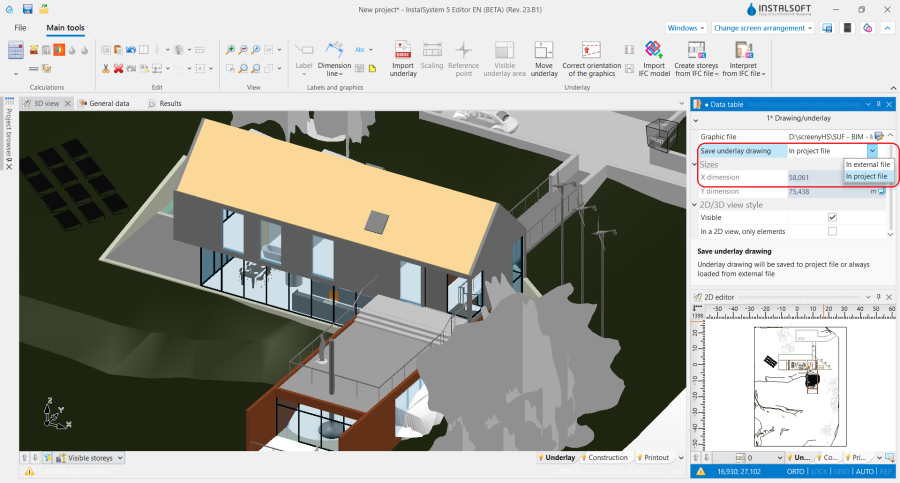
2. Запиши подложен чертеж IFC.

Viewing and managing an IFC model
- One of the first stages of model assessment is previewing its visualisation in the 2D редактор window and in 3D изглед. InstalSystem 5 allows full control of the range of objects displayed in the 3D изглед window and in the plan views of the model. This allows for easy and quick analysis of the model, creation of views from any angles and setting the visibility of all model components, depending on preferences and design needs.
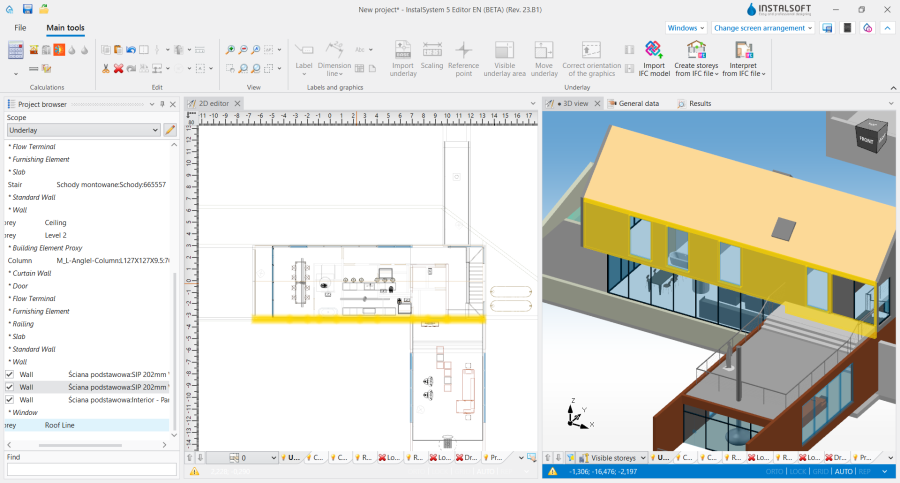
3. Visualization of IFC model in InstalSystem 5 package. - IFC models in 3D изглед can be presented in the original view or in the edge (semi-transparent) mode. To enable the edge view, right-click on the Основа tab in the active 3D изглед window and select the option: Видим, когато е активен (само ръбове).
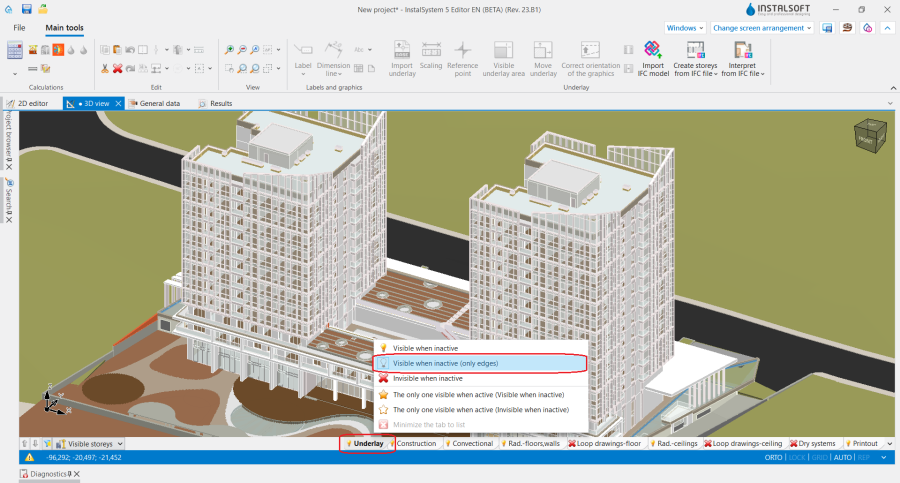
4. IFC model display settings.


Viewing an IFC structure using the project browser
- The Проектен браузър window provides an overview of the model structure and the way it is defined.
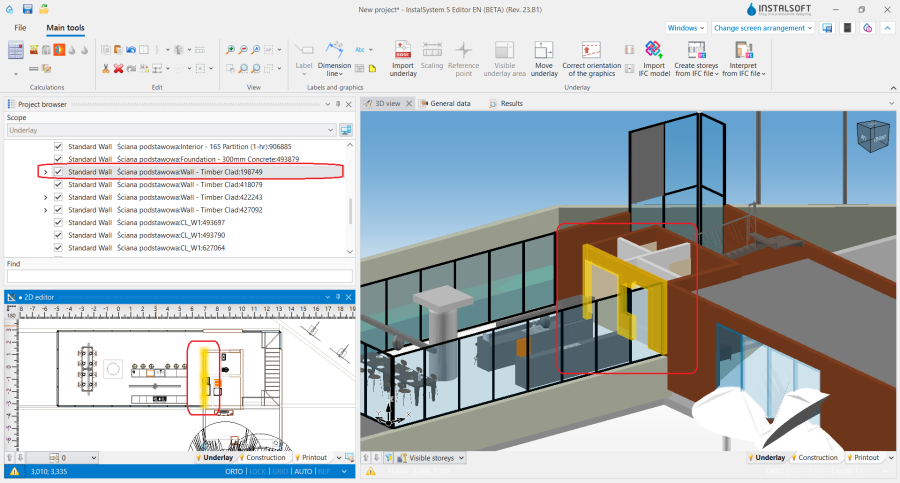
5. Проектен браузър - model IFC. - Проектен браузър window allows to check the assignment of components to storeys, it groups components by their type, enables easy searching and marking of objects depending on particular models/storeys/groups/components.
- The view of the loaded IFC model in the Проектен браузър window can be changed to full or simplified. If IfcSite, IfcProject and IfcBuilding components occur only once in a model, they will not be displayed in the simplified view.
- Each component of the IFC underlay has a dedicated button for controlling its visibility. Components unchecked in the Проектен браузър window are not displayed in the 2D редактор and in 3D изглед and are not subject to subsequent interpretation for the purpose of performing thermal calculations of the building.
- Visibility control buttons are also available for groups of components. Checking or unchecking the visibility of a group affects the visibility of all components assigned to that group.

- The Търси window has predefined search criteria for the basic types of IFC structural objects. This enables fast searching for selected components or groups of components, marking them and using them in subsequent design stages. Users can also define their own search criteria. За повече информация, моля вижте: Searching for components in a project.
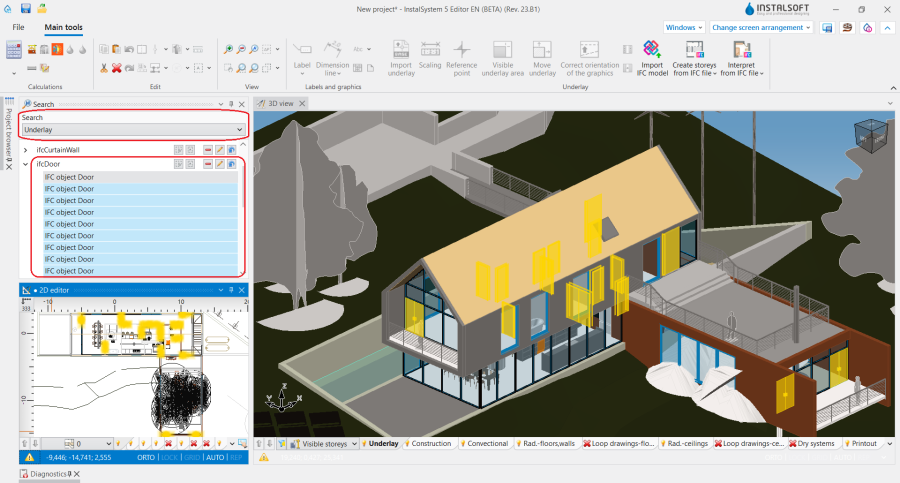
6. Търси - model IFC.

Additional information
- The program allows printing the 3D view (e.g. to PDF) and exporting plan views of the IFC model to the latest dwg/dxf formats. За повече информация, моля вижте: Export / print results and drawings.
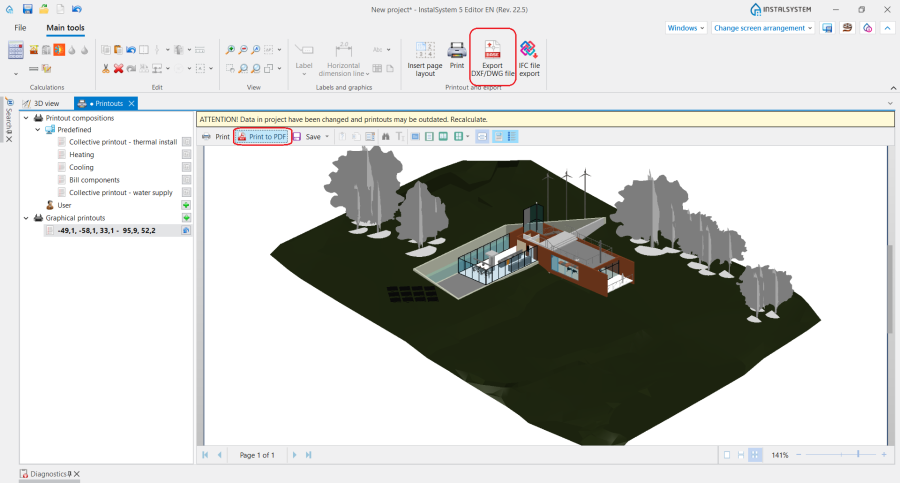
7. IFC model export.
