BIM – създаване на етажи от сграден модел с неутрален формат IFC
| Продукт | InstalSystem 5 |
| Вид статия | ФУНКЦИОНАЛНОСТИ |
| Актуално съдържание за версия | 2022-04-06 |
Описание
За да започне правилно интегрирането на IFC модел(и), импортирани в програмата със средата за проектиране InstalSystem 5, е необходимо да се създадат етажи (работни листове) въз основа на етажи в IFC файловете. Поради естеството на IFC проектите/моделите в архитектурните програми и тяхната сложност, етажите или плочите може да не са идентични с нашите дизайнерски цели - следователно програмата предоставя различни методи за създаване на етажи от импортиран IFC модел:
- с помощта на функцията Създай етажи от IFC файл
- с помощта на функцията Създай етажи между избрани плочи / покриви от IFC файл
- ръчно създаване на етаж в прозореца Управление на етажи.
Пълните възможности на тези инструменти са представени в примерите за употреба.
Webinars
We encourage you to see the video from our webinars presenting the possibilities of using the function described in this article:
Местоположение в програмата
- The icons of the Създай етажи от IFC файл and Създай етажи между избрани плочи / покриви от IFC файл functions are accessible in the 2D редактор window on the Главни ленти с инструменти bar in the Основа section for the enabled Основа editing scope.
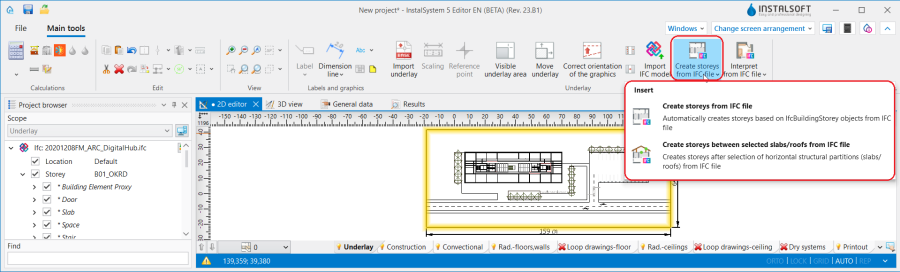
1. Creating a storey from an IFC model - Управление на етажи is accessible in the Общи данни window in the Сграда и околности section.
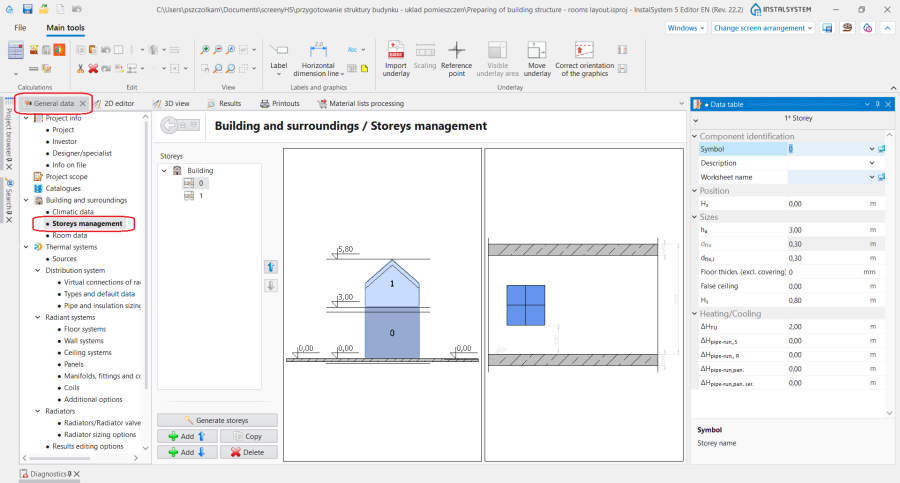
2. Управление на етажи.


Examples of use
Analysis of the structure of model from an IFC file
The choice of the manner of storey interpretation on the basis of the IFC model loaded into the program should be preceded by an analysis of its structure. For this purpose it is necessary to use the Проектен браузър window for the enabled Основа scope and review the model in respect of the number of storeys and structure of the components assigned to subsequent ifcBuildingStoreys. At this stage, it is also worth considering whether all storeys visible in the IFC model are relevant from the point of view of the thermal calculation or the system under design. За повече информация, моля вижте: Viewing the IFC structure using the project browser.

Storeys from an IFC file
For IFC models, in which the storey structure and the assignment of construction components follow the logic of InstalSystem 5 packages, it is recommended to use the Създай етажи от IFC файл function, which Автоматично създава етажи, базирани на IfcBuildingStorey обекти от IFC файл. As a result of the operation, for each ifcBuildingStorey one Етаж component is created in the project. All storeys created using the function are displayed in the Управление на етажи window and their data (i.e. Етажна кота or Етажна височина) comes from the IFC file.
Създай етажи от IFC файл will work properly when:
- One IFC model was loaded into the project.
- The storeys from the IFC format have the same logic as the Етаж components in InstalSystem 5, i.e. they are created one above the other and the building components are assigned to the storey accordingly.
- In the IFC file the roof is created on a separate dedicated ifcBuildingStorey.
- In the model derived from the IFC there are construction components assigned to a particular ifcBuildingStorey, but they extend beyond its scope, e.g. walls spanning multiple storeys.
Storeys between indicated slabs/roofs from IFC file
If storeys structure in IFC model is not coherent with the logic of a building in InstalSystem 5, it is necessary to create storeys by means of the Създай етажи между избрани плочи / покриви от IFC файл.
In the first step in the Проектен браузър window for the enabled scope of Основа it is necessary to select horizontal structural partitions (slabs and roofs) from IFC model imported into the program and then to invoke the operation. For the worksheets corresponding to successive storeys to be created correctly, all ifcSlab/ifcRoof construction components that form upper and lower boundaries for the individual storeys must be indicated.
Създай етажи между избрани плочи / покриви от IFC файл will work properly when:
- Multiple IFC models with defined storeys have been imported into the project.
In the IFC model, storeys are defined to which only minor architectural components or other storeys not needed for the thermal model or system design have been assigned.
- In the IFC model there are storey offsets (half-storeys).
After the operation, the data of the Етаж components created in the project are inherited from the IFC model:
- Етажна кота Hs - elevation of the upper edge of the ifcSlab component constituting the lower boundary of the storey
- Етажна височина hос - distance between top and bottom edge of ifc components delimiting a given storey
- Дебелина на таван dflo - thickness of the ifcSlab/ifcRoof component constituting the upper boundary of the storey
- Дебелина на под dflo - thickness of the ifcSlab component constituting the lower boundary of the storey
- Кота било на покрив - for the last storey in the sequence, the elevation of the upper edge of the ifcSlab/ifcRoof component.
Manual creation of storeys in the Storeys management window based on an IFC model
If the above-mentioned operations do not produce Етаж components correctly, the solution is to create storeys manually in the Управление на етажи window.
За повече информация, моля вижте: Creating storeys.
Hint: When creating storeys, alternative software can be used to retrieve the storey constituents, e.g. with the free tool BIMVision.
Additional information
Loading multiple IFC models into a project
If multiple IFC models need to be loaded into the project, the main/basic IFC model containing the building structure should be loaded first and the necessary Етаж components should be interpreted based on this, before loading further IFC models (e.g. containing services or minor architectural features).
Limiting the IFC model view
After interpreting the storey from the IFC model before continuing with the project, it is helpful to use the function: В 2D изглед само елементи от етажния диапазон, which is available in the Таблица с данни window for the IFC model selected in the Проектен браузър window. When the function is enabled, only the IFC components within the elevation range of the storeys are presented in the worksheet.

Modifying storeys created based on an IFC model
The data of the Етаж components interpreted from the IFC model can be edited. After creating a storey, go to the Управление на етажи window, verify and, if necessary, change the data for each Етаж.
Due to the nature and complexity of IFC projects/models created in architectural programs, storeys or slabs may not be the same as our intended design goals. For instance, when in an IFC model the ifcSlab components delimiting the storey range consist of several component layers, select one ifcSlab layer (e.g. the top one), and after launching the operation: Създай етажи между избрани плочи / покриви от IFC файл, go to the Управление на етажи window and change the value in Дебелина на таван/Дебелина на под to the sum of the thicknesses of all layers of the ifcSlab components.
Repeated use of the storey-creating functions
While working with a project it is possible to run again the functions that create storeys based on the imported IFC model:
- Създай етажи от IFC файл - each re-call of the operation will overwrite the storeys displayed in the Управление на етажи window with storeys created from the IFC model loaded into the project.
- Създай етажи между избрани плочи / покриви от IFC файл - each time the operation is executed again, a dialog box opens with the question: :
- Selecting Да causes the storeys displayed in the Управление на етажи window to be overwritten with storeys interpreted on the basis of the IFC model loaded into the project.
- Selecting Не creates another component without affecting the arrangement of existing series in the project.