BIM – тълкуване на IFC елементи в сградната конструктивни елементи на ИнсталСистем 5 BIM
| Продукт | InstalSystem 5 |
| Вид статия | ФУНКЦИОНАЛНОСТИ |
| Актуално съдържание за версия | 2022-04-22 |
Описание
The InstalSystem 5 package is provided with a number of functions and tools that enable interpreting selected structural components of an IFC model (i.e.: ifcBeam, ifcBuildingElementProxy, ifcColumn, ifcCurtainWall, ifcDoor, ifcFooting, ifcOpeningElement, ifcRoof, ifcSlab, ifcWall, ifcWindow, ifcPlate etc.) into native structural components of InstalSystem 5, i.e.: Стена (including Отвор в стена), Окачена фасада, Прозорец (including Покривен прозорец), Врата, Покрив, Плоча (including Отвор в плоча). The interpreted structural components can then be used when working on Топлинни изчисления на сграда or when selecting Dokonuj obliczeń świadectw CE i wyznaczaj charakterystykę energetyczną, and then also to design a system of any kind.
Functions that interpret the components sort them according to the structure type:
- Създава стени от IFC файл - Създава конструктивни стени след избор на обекти, представляващи стени от IFC файл
- Създава прозорци, врати и отвори за стени от IFC файл - Създава прозорци, врати и отвори в стената след избор на подходящи обекти от IFC файл (изисква се по-ранна интерпретация на стените)
- Създава покриви от IFC файл - Създава покриви с ръбове след избор на подходящи обекти от IFC файл
- Създава плочи от IFC файл - Създава плочи с отвори след избор на подходящи обекти от IFC файл.
In addition, when performing interpretation, the user is supported by standard tools to assist in the design process based on the IFC model in the InstalSystem 5 package, i.e.:
- Търси window
- Проектен браузър window
- Таблица с данни window
- 2D редактор and 3D изглед windows.
How to use these tools and how to navigate an IFC model is described in detail in: BIM - Import and management of IFC models in InstalSystem 5 package.
Prior to interpreting the building structure into InstalSystem 5 structural components, storeys must be created based on the IFC model.
За повече информация, моля вижте: BIM - Creating storeys based on data from IFC model.
Webinars
We encourage you to see the video from our webinars presenting the possibilities of using the function described in this article:
Местоположение в програмата
- Icons of operations allowing to interpretate IFC elements as InstalSystem 5 structural components are located in the 2D редактор window ad in the 3D изглед window in the Главни ленти с инструменти toolbar in the Основа section for the active Основа. Each function has its own icon located on the toolbar.
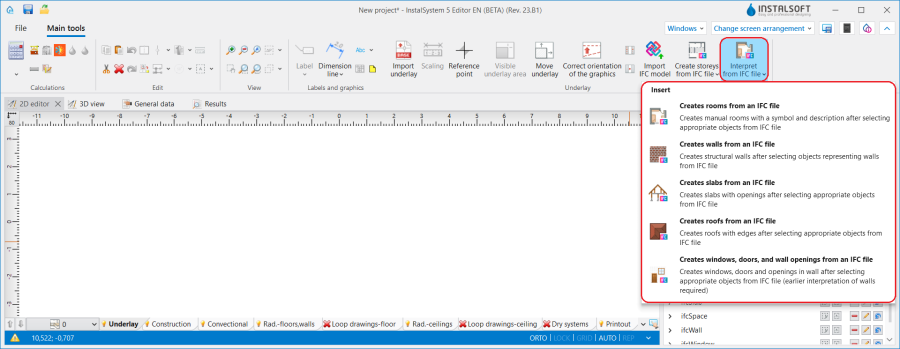
1. Operations available for interpretation of IFC elements as structural components.

Examples of use
Interpreting structural components of an IFC model - general
Selecting components to be interpreted
- Before running the interpreting function the components to be interpreted must be selected. This can be done using:
- The Търси window within the Основа scope using predefined groups of IFC component types or by defining individual search criteria. За повече информация, моля вижте: Search components in the project.
- The 2D редактор or 3D изглед window within the enabled Основа editing scope - directly by clicking the selected components.
- The Проектен браузър window. За повече информация, моля вижте: BIM - Import and management of IFC models in InstalSystem 5 package.
- Components can be interpreted individually or in groups. For example: selecting a group of ifcWall and selecting Създава стени от IFC файл will create native Стена components from all ifcWall components assigned to the selected group.
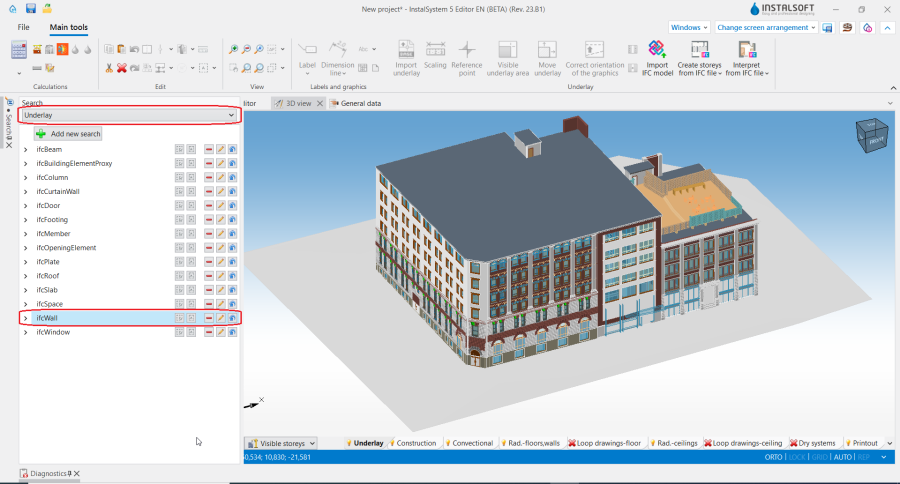
2. Selecting a group of components in the Търси window. - Components that are unchecked in the Проектен браузър window are not displayed in the 2D редактор and 3D изглед windows and will not be interpreted. This mechanism can be used to hide entire infrastructure (low walls, fences, roads), which includes components that are not required to be interpreted in view of further work on the project or when some components are to be interpreted in subsequent steps, e.g. when structural components are interpreted storey after a storey.

Editing the structure created after interpreting a model
- After interpreting, native structural components of InstalSystem 5 are created within the Конструкция scope and exist in parallel (simultaneously) with IFC model components within the Основа scope. After appropriately setting the visibility mode, e.g. Невидим, когато е неактивен or Видим, когато е активен (само ръбове), the IFC model view can be displayed beside the view of the native structural components depending on the current design needs.
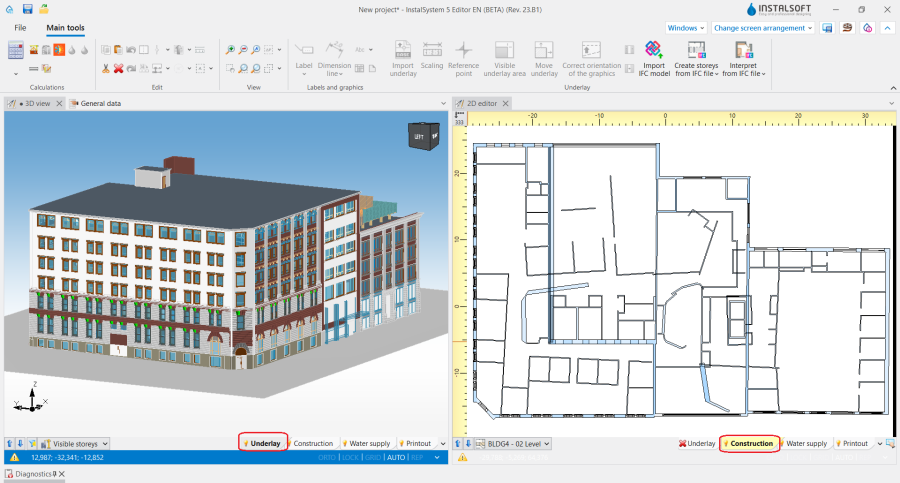
3. Setting the visibility modes. - Within the Конструкция scope the components created by interpreting an IFC model can be modified at will: moved, removed, have their data changed in the Таблица с данни window.
Note: IFC model components (within the Основа scope) cannot be modified/removed. They can be hidden (in the Проектен браузър window), and models can be removed entirely and/or replaced with their new versions. За повече информация, моля вижте: BIM - Import and management of IFC models in InstalSystem 5 package. - The structure created from an IFC model can be supplemented with manually inserted components using the tools available for the Конструкция editing scope. These components have an АВТО function for the currently loaded IFC model design. This enables creation of the building structure to be approached in the most efficient way, adapted to the quality of the imported IFC model:
- The structure can be fully developed using functions that automate the creation process.
- The structure can be prepared in a hybrid manner - some components are automatically interpreted using the program's functions, while others are inserted manually.
- The structure is developed without the use of automation functions and the IFC model loaded into the project is used in the same way as a conventional Основа DWG/DXF.

Interpretation of walls
- After executing the Създава стени от IFC файл operation, switch to the Конструкция editing scope and carefully examine the created layout of components.
- If necessary, correct the components manually or using the Поправка на геометрия на стена operation. За повече информация, моля вижте: Wall geometry correction.
Problems, which may appear in the created layout of Стена components, result from the fact, that walls are interpreted with preservation of geometry, position and shape according to the IFC model record, which is not always fully compatible with the methodology of creating a building structure InstalSystem 5. The most common situations where the Поправка на геометрия на стена operation should be used with Поправи стенни връзки enabled include:- Intersecting walls - if walls in an IFC model have been defined in such a way that they intersect, performing the operation will batch convert all such connections into connections of components that are correctly handled by Изчисление на сградна конструкция.
- Tangential walls, connected in parallel by their longer edge with each other - if there are such defined components in the IFC model, the best solution is to exclude tangential walls from the interpretation and manually add them or change the wall thickness. If the tangential walls have not been unchecked before interpretation, executing the operation will turn the tangential walls into a single Стена component with the appropriate thickness.
- Walls, the elevation Z of which begins or ends less than 5 cm from the elevation of the upper edge of the lower slab or the lower edge of the upper slab - such "unadjusted" walls may cause, at a later stage of design, lack of identification of a Помещение or an Автоматично. As a result of the operation, all the walls whose lower or upper edge is less than 5 cm from the slab will be "pushed" to the slab in order to form a closed space of a room.
- Walls that are contained in another wall will be removed as a group when the operation is executed. This applies mainly to components that were difficult to hide out of visibility before interpreting them and have been interpreted redundantly.
Interpretation of slabs
The concept of using ifcSlab in many IFC models makes the number of interpreted Плоча components too large and complicates further work on the project. The Създава плочи от IFC файл operation should be carried out with the following guidelines in mind:
- Exclude from interpretation (in the Проектен браузър window) components such as step, curb, architectural detail, that are defined in the IFC model as ifcSlab.
- When the operation is performed, all openings in the slab from the IFC model are interpreted. In a situation where there are a lot of openings, they can prevent proper identification of components Помещение Автоматично. It is therefore necessary to remove such openings and arrange them according to the real needs of Топлинни изчисления на сграда. Another option is to uncheck the checkbox in the Активни отвори за плочи field in the Таблица с данни of the Плоча component and carry out Изчисление на сградна конструкция.
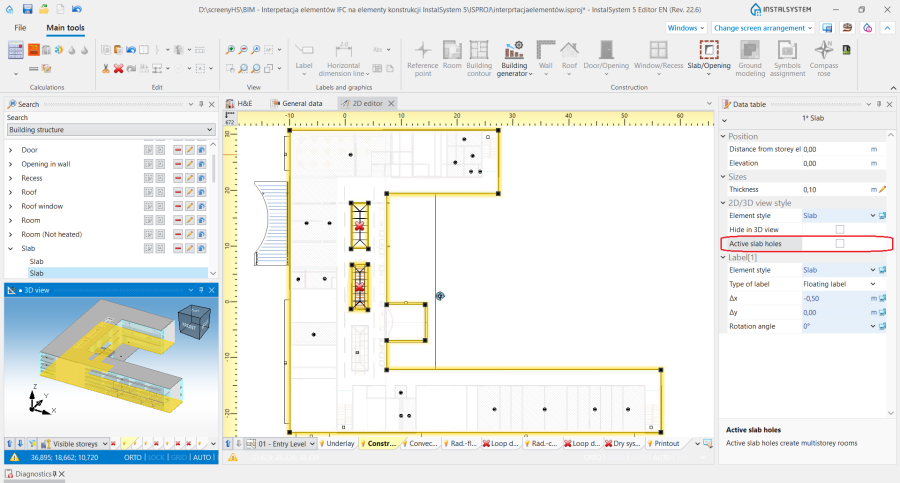
4. Активни отвори за плочи in Плоча component. - In case the slab in the IFC model has been defined with several layers of ifcSlab components, only one slab layer needs to be selected for interpretation, and after the Създава плочи от IFC файл operation the shape of the Плоча component should be adjusted, if necessary, with hotpoints and its data changed in the Таблица с данни of the Етаж component (fields Дебелина на под and Дебелина на таван).
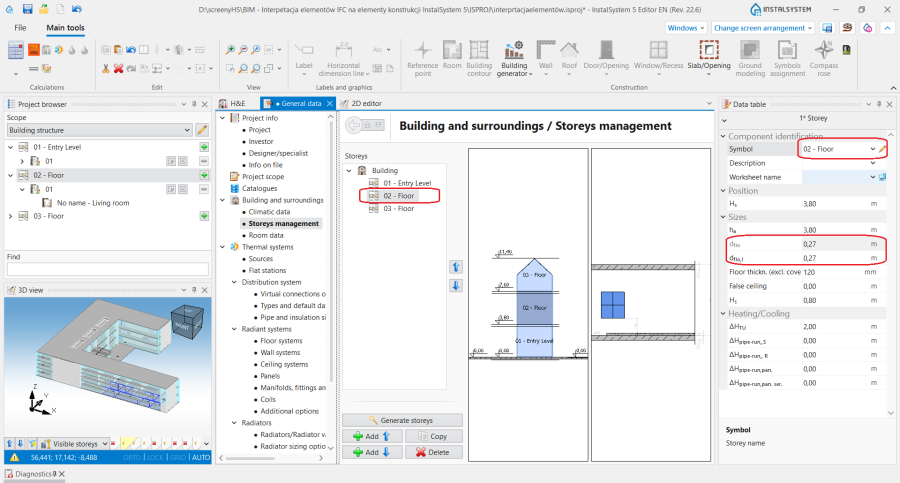
5. Плоча thickness settings. - The slabs defined in the IFC model as tangent tie beams and proper slabs of the same thickness are interpreted as separate Плоча components as a result of the operation. If tangency and the same slab thickness are maintained, the program will at a later stage correctly identify the component. In case the constituents of the ifcSlab component are of different thickness or are not in contact with each other, only one of the components should be selected for interpretation and afterwards its shape and data should be modified.
- After interpreting the construction components from models in which ifcSlab extends only to the inner edges of the walls, the program correctly identifies the components . However, if there are gaps between ifcWall and ifcSlab, the shape of the Плоча component after the interpretation operation must be adjusted to follow the outline of the building.


Interpretation of roofs
- If in an IFC model Покрив is defined as multiple objects of the ifcRoof or ifcSlab type, of the same thickness and tangent to each other, the program will, as a result of the Създава покриви от IFC файл operation, create multiple components of the Покрив type.
Interpretation of windows, doors and openings
- Before performing the Създава прозорци, врати и отвори за стени от IFC файл operation, the interpretation of walls, slabs and roofs from the IFC model and Изчисление на сградна конструкция should be performed first, which should be completed with the correct creation of Помещение Автоматично components. Only after this step should one proceed to the interpretation of the components Прозорец (including Покривен прозорец), Врата or Отвор в стена.
- If the elevation range of the Стена does not match the elevation of the interpreted ifcWindow / ifcDoor object, manually modify Стена by changing in the Таблица с данни window the values of the Преместване на долен ръб or Преместване на горен ръб fields.
- Objects of the Покривен прозорец type in the IFC model are often saved as ifcBuildingElementProxy. The Създава прозорци, врати и отвори за стени от IFC файл function will replace such an object with the proper component if it is marked appropriately.
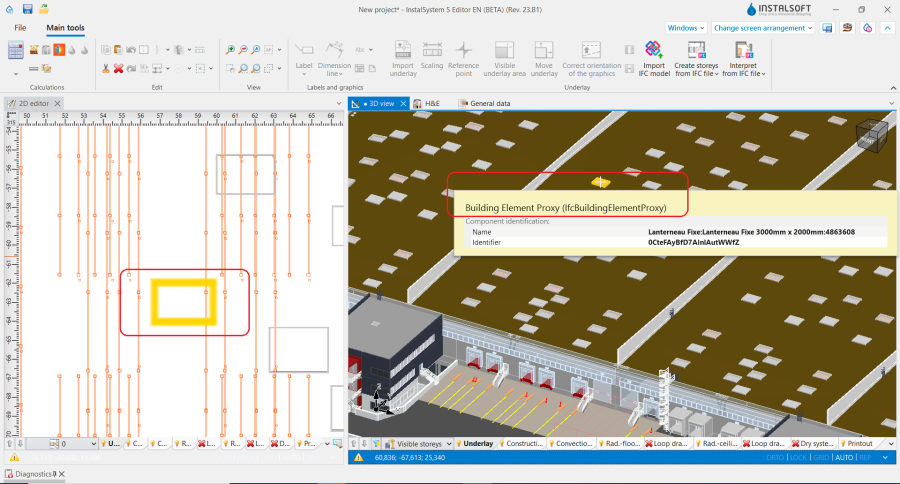
6. Покривен прозорец as an ifcBuildingElementProxy object in an IFC model.

Additional information
Tolerance in the interpretation of components from an IFC model
- The program is protected against incorrect object mappings in the model imported into the project. If the user is aware of the target component that the IFC object symbolises, he/she can still effectively use the automated component interpretation functions.
For example: selecting an ifcSlab component and executing Създава покриви от IFC файл will create a native Покрив component (rather than Плоча).