Подготовка конструкция на сграда: Разлика между версии
Редакция без резюме |
|||
| Ред 84: | Ред 84: | ||
[[pl:Przygotowanie struktury budynku]] | [[pl:Przygotowanie struktury budynku]] | ||
[[en:Preparation of building structure]] | |||
[[zh-cn:建筑结构的准备]] | [[zh-cn:建筑结构的准备]] | ||
[[Category:InstalSystem 5]] | [[Category:InstalSystem 5]] | ||
[[Category:FUNCTION AND TOOL]] | [[Category:FUNCTION AND TOOL]] | ||
Версия от 10:35, 9 февруари 2018
| Продукт | InstalSystem 5 |
| Вид статия | FUNCTION AND TOOL |
| Актуално съдържание за версия | IS 5.0 Beta Rev. 0.0.B33 |
Description
The article describes how building structure can be prepared and how the created structure can be verified. There are several ways the building structure can be prepared for a project. The choice of the method depends on what source data on the structure and storey plans are available and on the scope of the design to be made. If the scope of the design does not include calculation of heat losses according to standards, then rooms can be represented in the plans as polygons with no cooling partitions. Each storey constitutes a separate plan drawing sheet.
Location in program
Управление на етажи
- Управление на етажи is available in the Общи данни window.
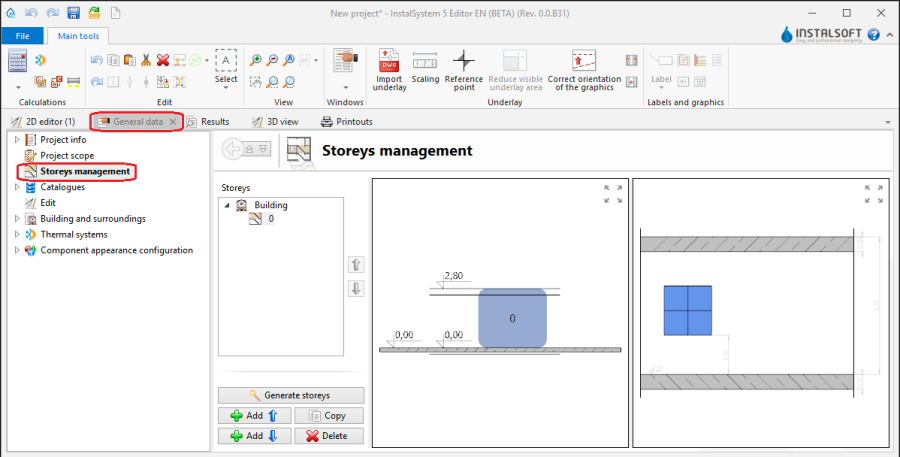
1. Управление на етажи

Import underlay
- Icons of components and functions related to importing underlays (base drawings) are available in the 2D Editor window on the Главни ленти с инструменти bar in the Основа section when the Основа editing scope is enabled.
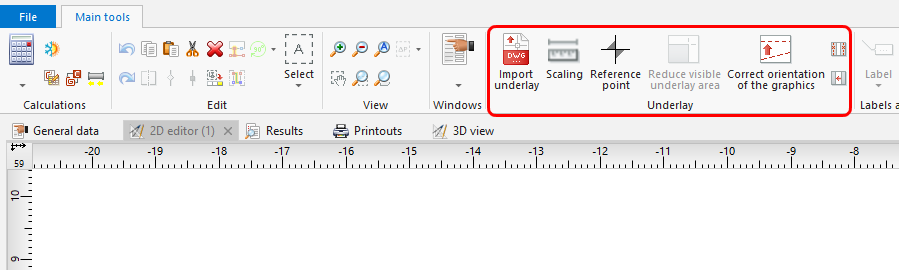
2. Import underlay

Building structure
- Icons of components and functions related to the building structure are available in the 2D Editor window on the Главни ленти с инструменти bar in the Конструкция section when the Конструкция editing scope is enabled.

3. Building structure components

Computation of building structure
- Изчисление на сградна конструкция is available on the Главни ленти с инструменти toolbar in the Изчисления section.
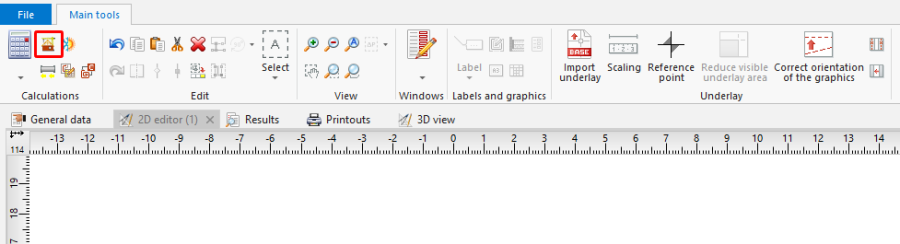
4. Изчисление на сградна конструкция

Examples of use
Manual creation of building structure
Storeys
- Create the required storeys and append their data. The movie shows creation of two sets of storeys.
Underlay
Underlay (base drawing) is a two-dimensional (flat) graphical object retrieved from an external raster or vector file. The underlay itself does not provide building structure components, but it enables manual creation thereof adapted to the actual state of the building.
За повече информация, моля вижте: Import files
Помещение - ръчно създаване на помещения
- Create a Помещение manually using a contour line
or by drawing a diagonal line. When a room is created by drawing a diagonal line disable the ОРТО operating mode. After drawing the diagonal line complete the edition by right clicking.
Помещение - identification within area bordered with drawn partitions
Rooms can be created automatically in areas bounded by edges (surfaces) of the defined graphical partitions (walls, floor slabs, roofs). In this case it is necessary to draw graphical partitions in the project and to run Изчисление на сградна конструкция, which also enables adapting the partitions to the drawn plane of the roof.
- Place a series of Стена components by entering at the start the thickness of the wall in Таблица с данни and moving the cursor along the internal edges of the walls on the underlay. In underlays retrieved from a DWG file make use of the snapping to indicated layer feature. After placing Internal walls insert External walls in similar manner.
- Place the following components: Прозорец, Врата, Отвор в стена, Ниша.
- Place the following components: Плоча. Outline of one storey is by default covered by a single slab.
- Insert: Покрив.
- Create a multifaceted roof.
За повече информация, моля вижте: Preparation of building structure - Creation of roofs with different construction - Insert components Покривен прозорец
- Insert components: Отвор в плоча.
Отвор в плоча can be deleted by clicking
- Carry out Изчисление на сградна конструкция.
Изчисление на сградна конструкция launches a number of operations associated with providing a complete building structure:- cutting away partitions by the roof plane,
- automatic identification of rooms.
- Ponumerować pomieszczenia
- Nadanie symboli pomieszczeniom następuje poprzez wybranie operacji Номерирай помещения i zaznaczanie etykiet pomieszczeń w wybranej kolejności. Kolejność ta definiuje kolejność numeracji pomieszczeń
- Program pozwala na konfigurację schematu numerowania pomieszczeń
- Nadanie symboli pomieszczeniom następuje poprzez wybranie operacji Номерирай помещения i zaznaczanie etykiet pomieszczeń w wybranej kolejności. Kolejność ta definiuje kolejność numeracji pomieszczeń

Pokazana poniżej konfiguracja numeracji oznacza, że symbol pomieszczenia składa się z symbolu kondygnacji oraz kolejnego, zawsze dwucyfrowego, numeru na danej kondygnacji. Więcej objaśnień zostanie wyświetlonych po ustawieniu wskaźnika myszy nad  .
.

Manual editing of rooms and automatic identification of walls and slabs against the background of underlay
The operation of automatic identification of walls and slabs enables creating these partitions within spaces identified between rooms included in the project and the outline of the building.
To carry out the operation:
- In the project file with previously inserted rooms, make a building outline using the 'Building outline' function.
- Optionally: if the building outline is identical on a number of storeys, enter appropriate values in the fields 'from storey' and 'to storey' in the data table of the building outline component.
- Launch interpretation of external and internal walls and slabs based on rooms and building outline using the Автоматични стени, плочи и покриви function.
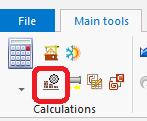
5.Автоматични стени, плочи и покриви

Importing a complete building structure
Importing a building structure from a BIM (gbXML) compatible format
За повече информация, моля вижте: Import files
Importing a building structure from an InstalSystem 4 (ISB) project file
If necessary, manually correct or append the missing or incorrect components of the building structure thus obtained using the methods described above.
Verification of the correctness of building structure
Carry out the verification in the 3D изглед window
За повече информация, моля вижте: View navigation in the graphical editor