Търсене на елементи в проекта: Разлика между версии
Направо към навигацията
Направо към търсенето
(Нова страница: „<!--Case 113684 (tu wskazać Case ŚU dla Funkcjonalności)--> {{Article table |commercial_product1=InstalSystem 5 |p2 =<!--gdy jest kolejny produ...“) |
|||
| Ред 19: | Ред 19: | ||
|v4 = | |v4 = | ||
}} | }} | ||
== | ==Описание== | ||
Инструментът ''<IS_TS id=ProjectBrowserTitle/>'' позволява търсене на елемент или група елементи в рамките на проекта. В резултат намерените елементи са маркирани във всички активни прозорци, като например: ''2D редактор'', ''<IS_TS id=View3D/>'', ''<IS_TS id=DataEditorTable/>'', ''<IS_TS id=ResultModuleTitle/>'', etc. | |||
==Location in the program== | ==Location in the program== | ||
Версия от 03:39, 1 март 2018
| Продукт | InstalSystem 5 |
| Вид статия | FUNCTION AND TOOL |
| Актуално съдържание за версия | IS 5.0 Beta 22 |
Описание
Инструментът позволява търсене на елемент или група елементи в рамките на проекта. В резултат намерените елементи са маркирани във всички активни прозорци, като например: 2D редактор, 3D изглед, Таблица с данни, Резултати, etc.
Location in the program
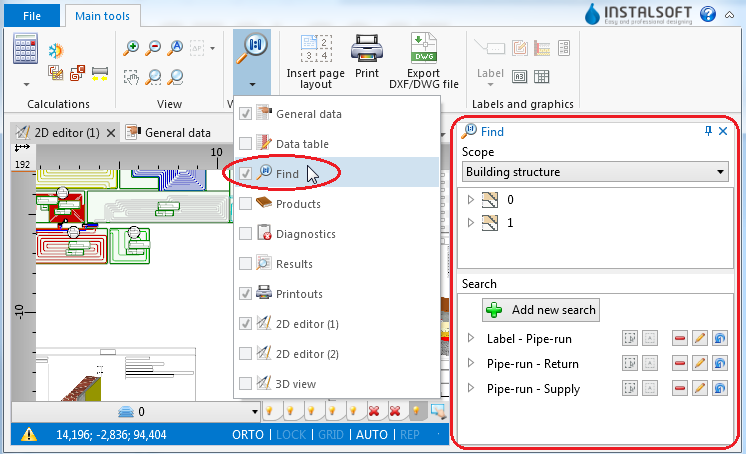
- The function forms a separate window and is available in the Главни ленти с инструменти toolbar in the Прозорци section.
1. function

Example of use
Searching for components of selected type
- Select Раздел of search (e.g. Сградна конструкция, Отоплителна и охладителна инсталация).
- Select the component in the tree of components.
- Additional buttons on the right side of window enable:
- searching for components of selected type within a drawing indicated by the user,
- searching for all components of selected type.
Searching for components that meet defined criteria
- Select one of the previously defined searches
or - Select Добави ново търсене.
- Fill in the Търси по име field.
- Select the scope of search in the Намери field.
- Select from the list the data type to be used in the search.
- Narrow down the range of your search by specifying the values of selected data.